01
What is a dieline?
A dieline is the flat, unfolded outline of a box at real size. It shows where the blade cuts, where the board folds, and how far the print has to extend to allow for cutting.
Artwork placed on the dieline lands in the right spot on the finished box, so the front, sides, lid and base never swap or shift.
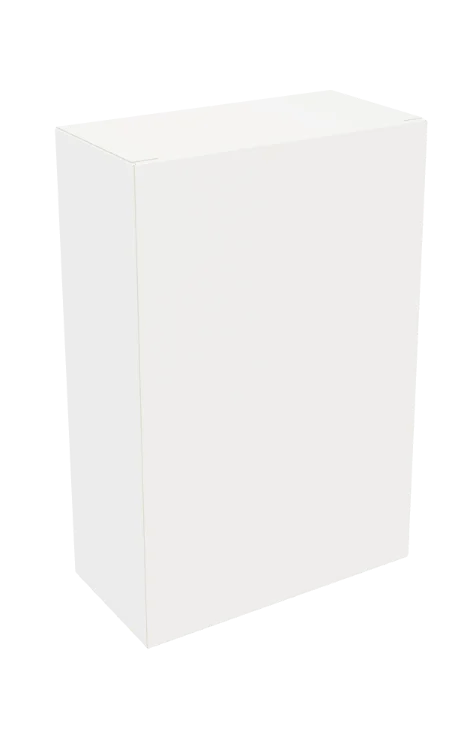 Folded box
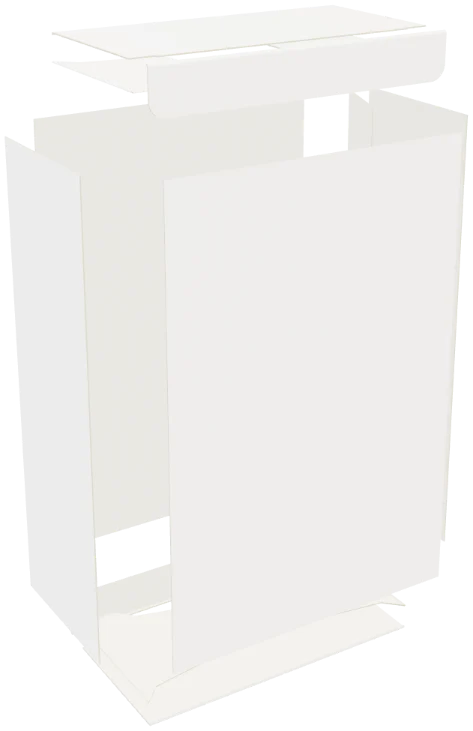 Each panel pulled apart
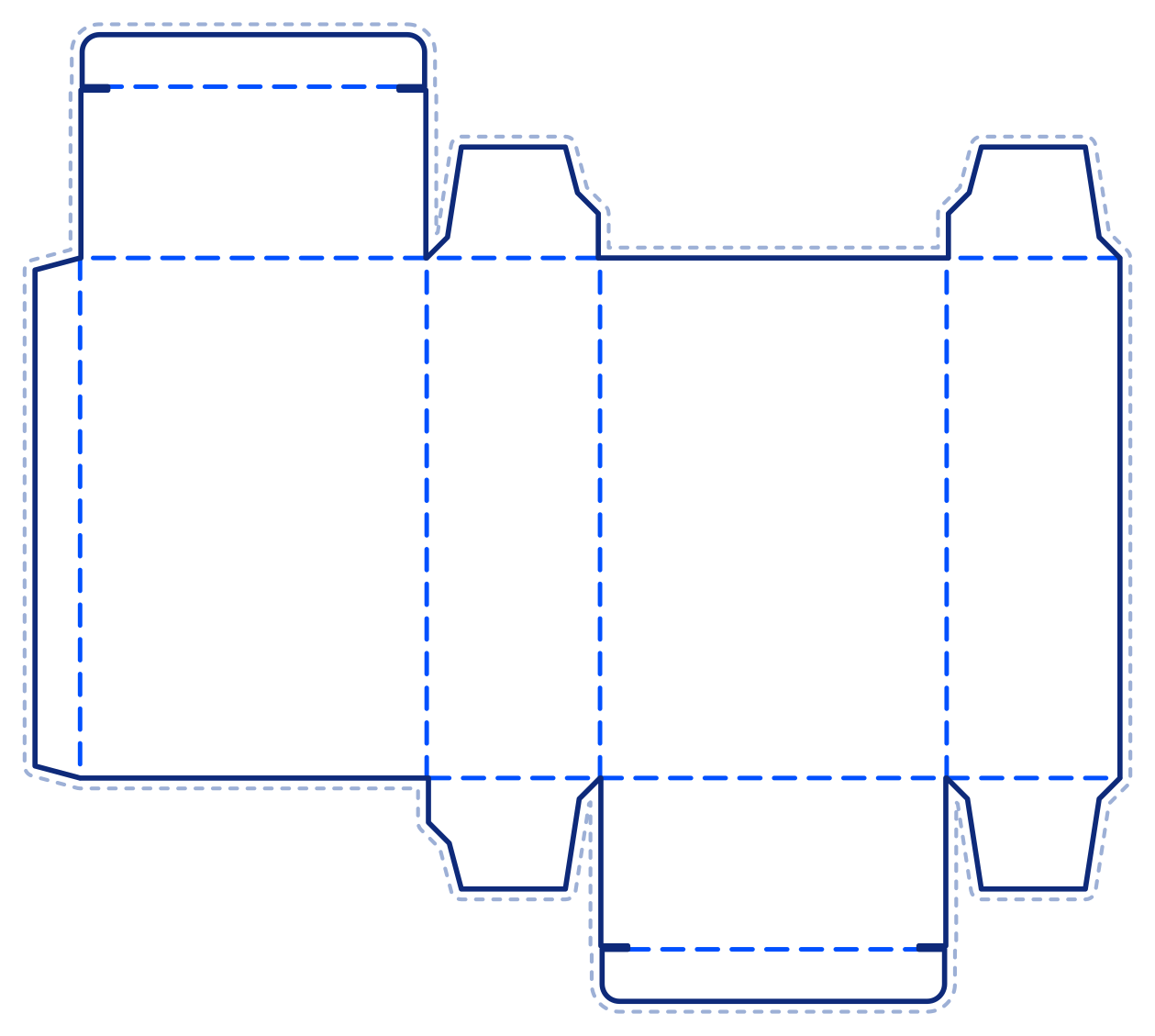 Dieline — flat layout
02
Box shapes with dielines
Choose a shape first, then enter the size you need. The table shows each shape's default size, which you can change in the dieline maker.
| Dieline | Box shape | Default size L × W × H (mm) | Tool |
|---|---|---|---|
| Reverse tuck end box | 100 × 50 × 150 mm | Create dieline |
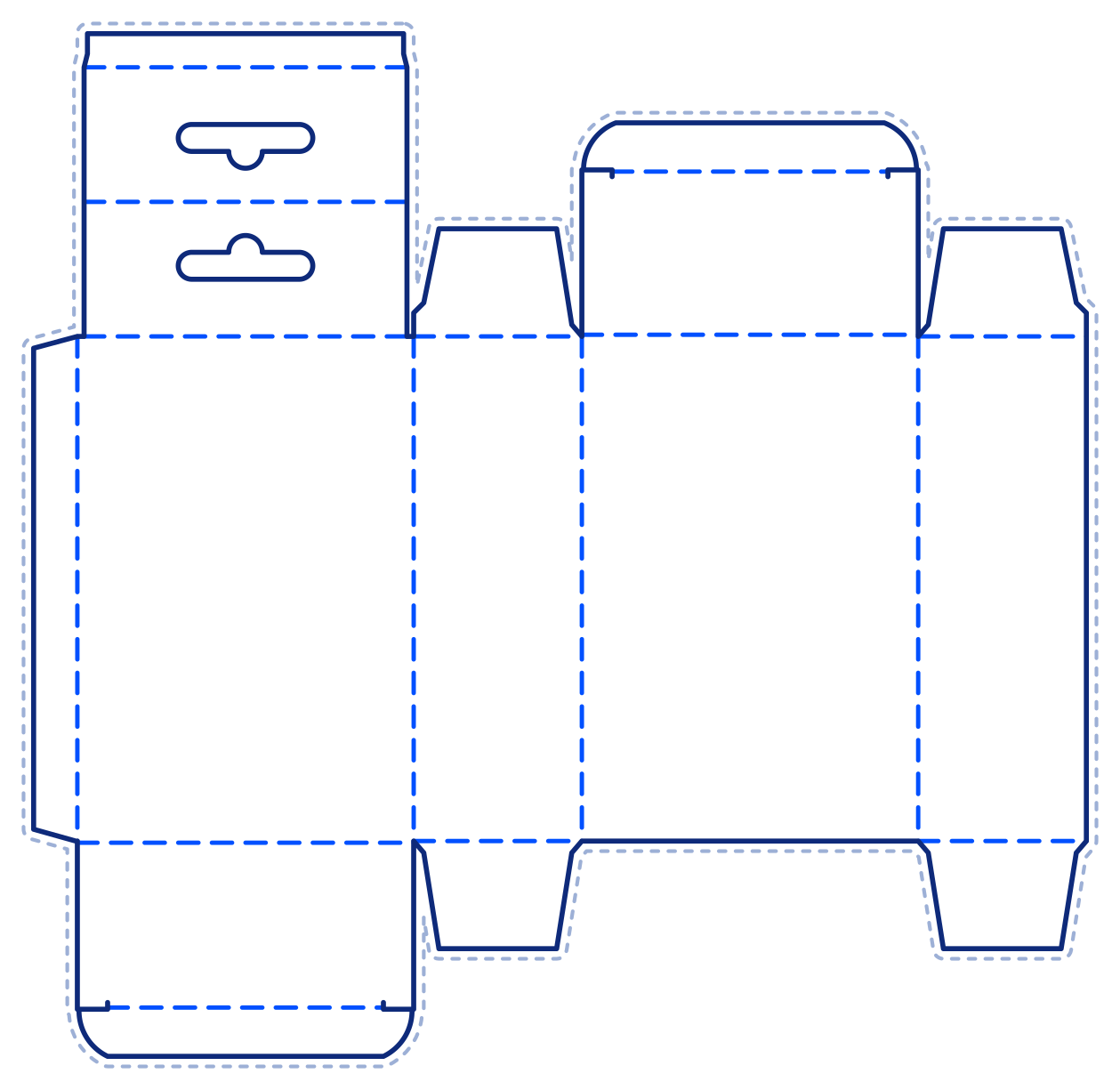 | Tuck end box with hang tab | 50 × 100 × 150 mm | Create dieline |
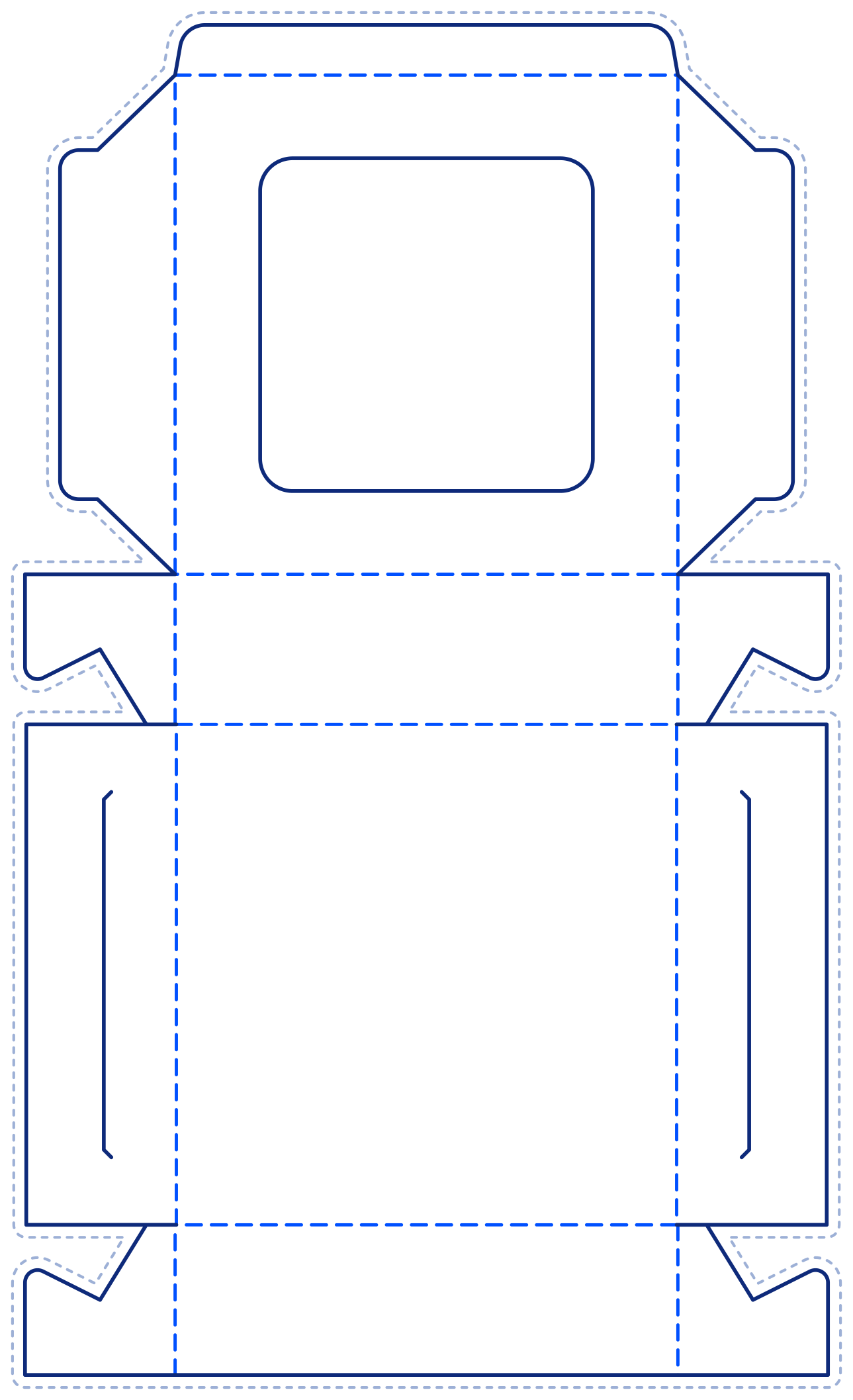 | Window box | 200 × 200 × 60 mm | Create dieline |
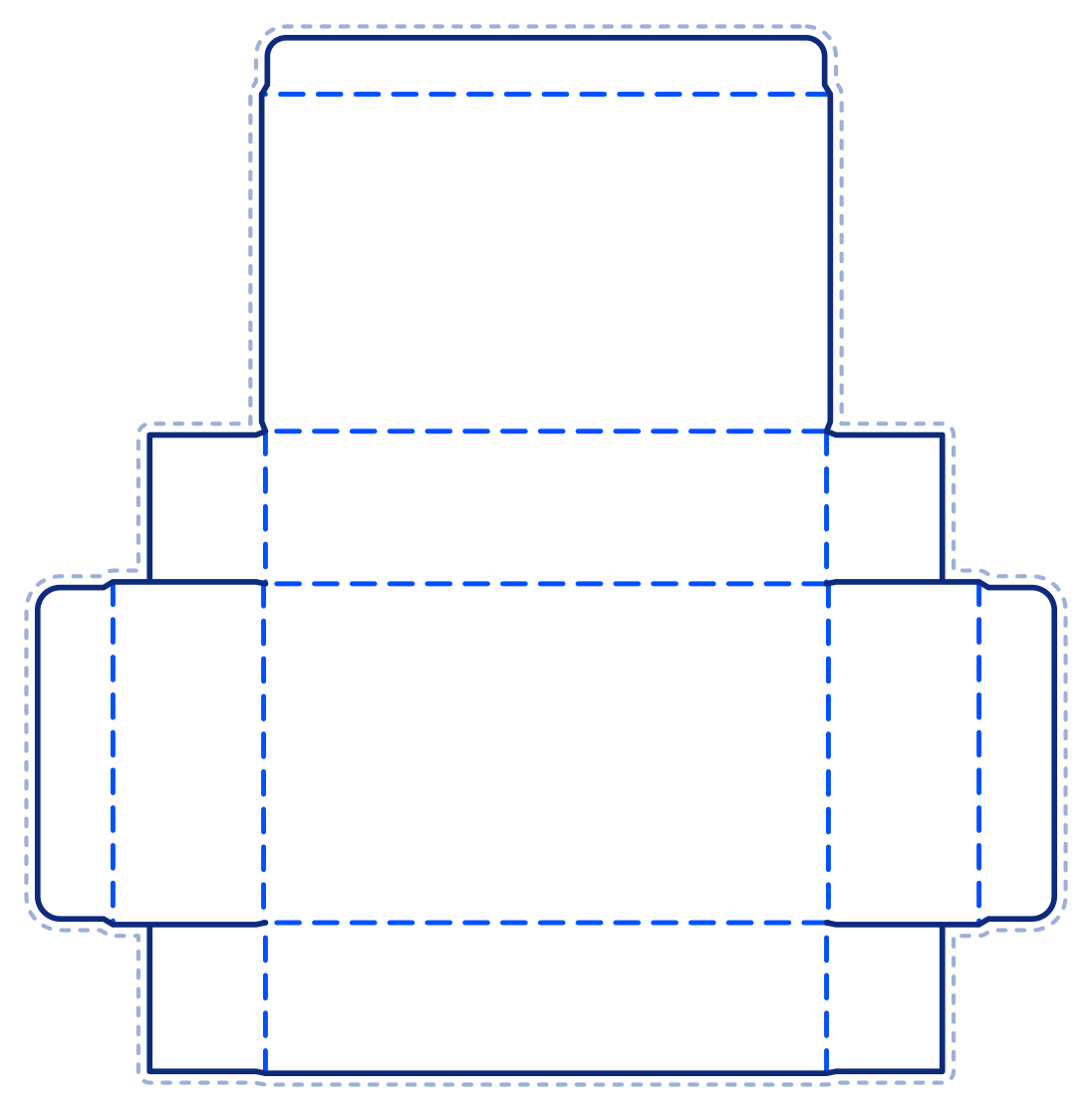 | Hinged lid tray box with front tuck | 150 × 90 × 40 mm | Create dieline |
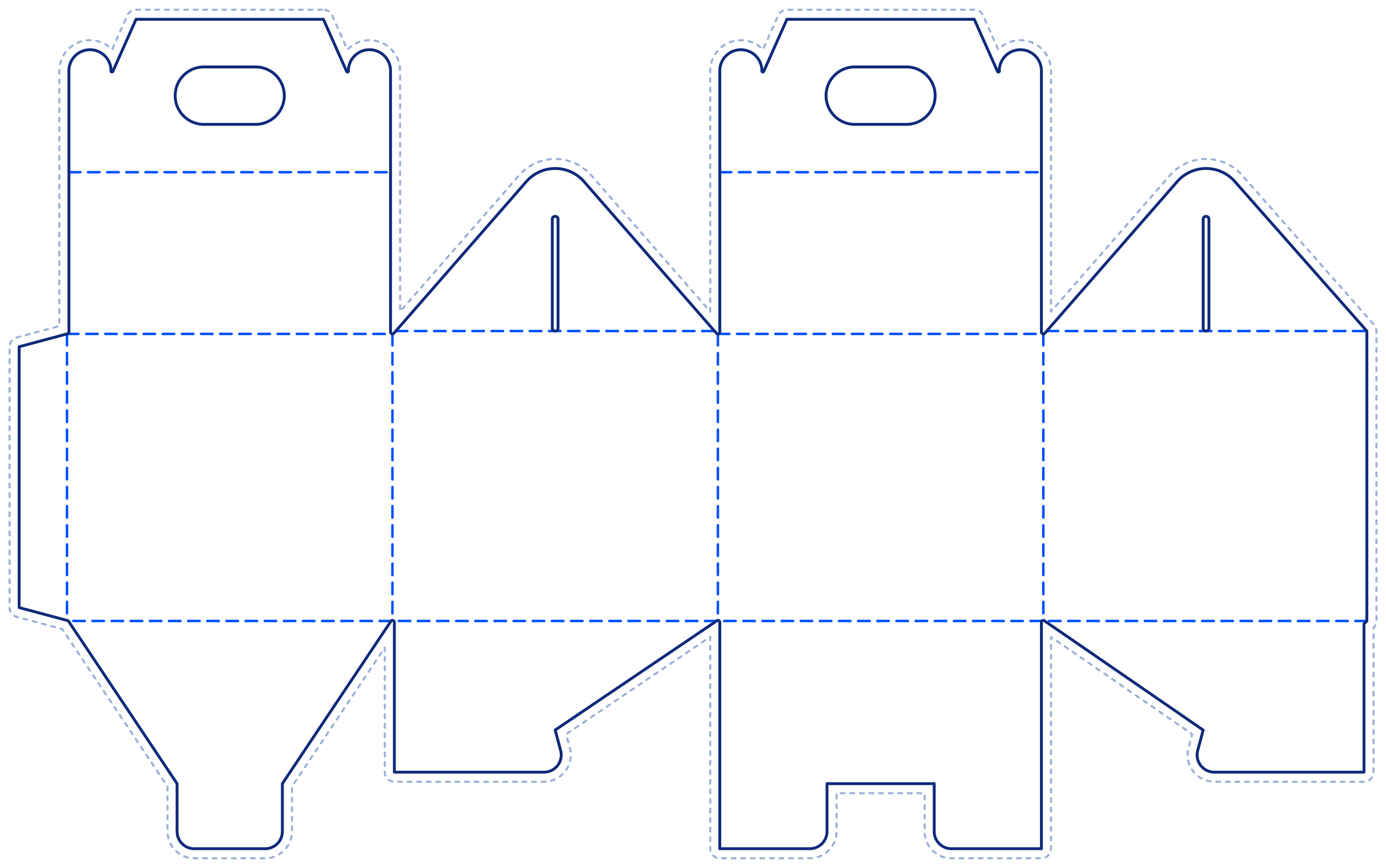 | Cake box with double handle, lock bottom | 170 × 170 × 150 mm | Create dieline |
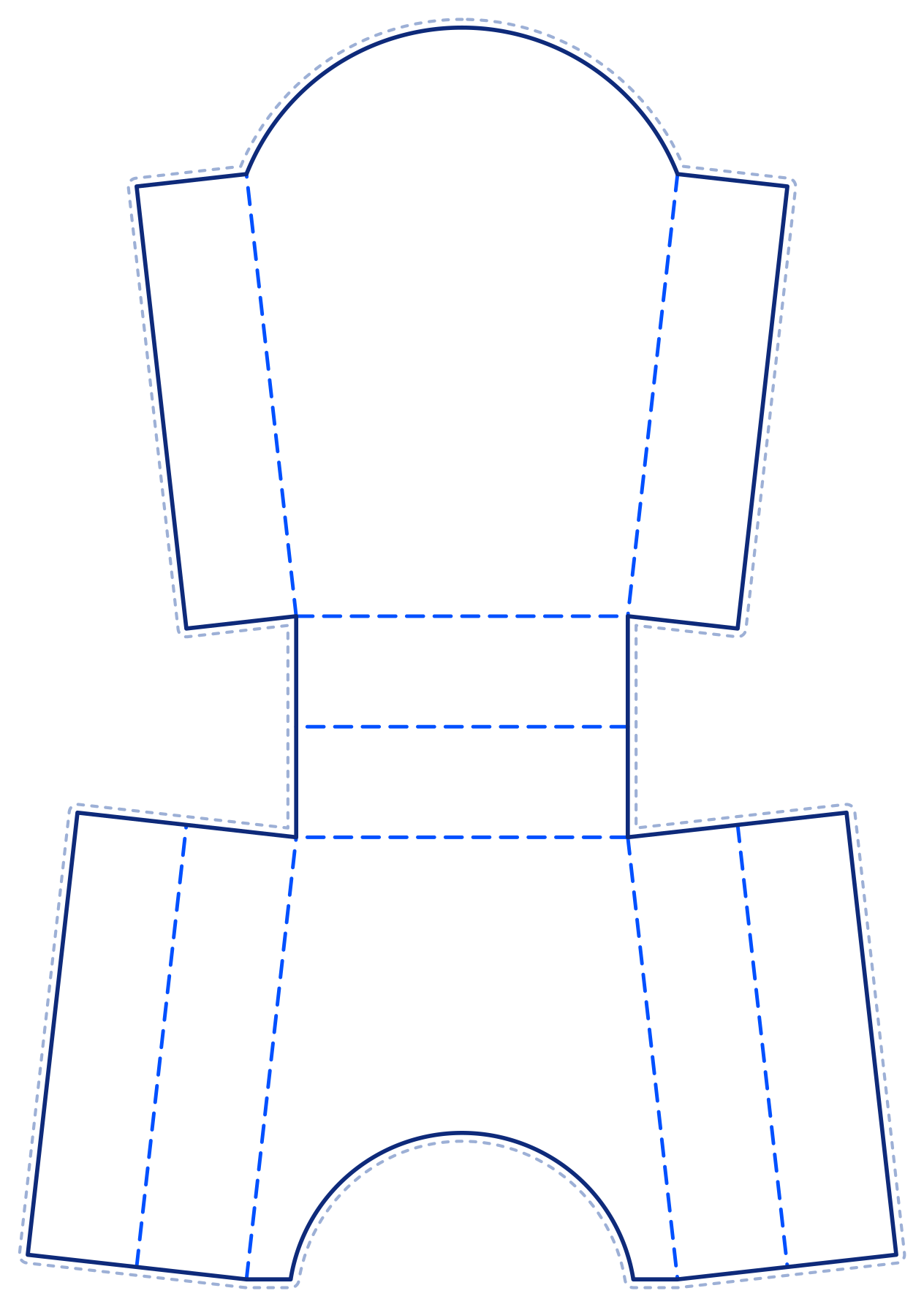 | French fries box | 120 × 80 × 160 mm | Create dieline |
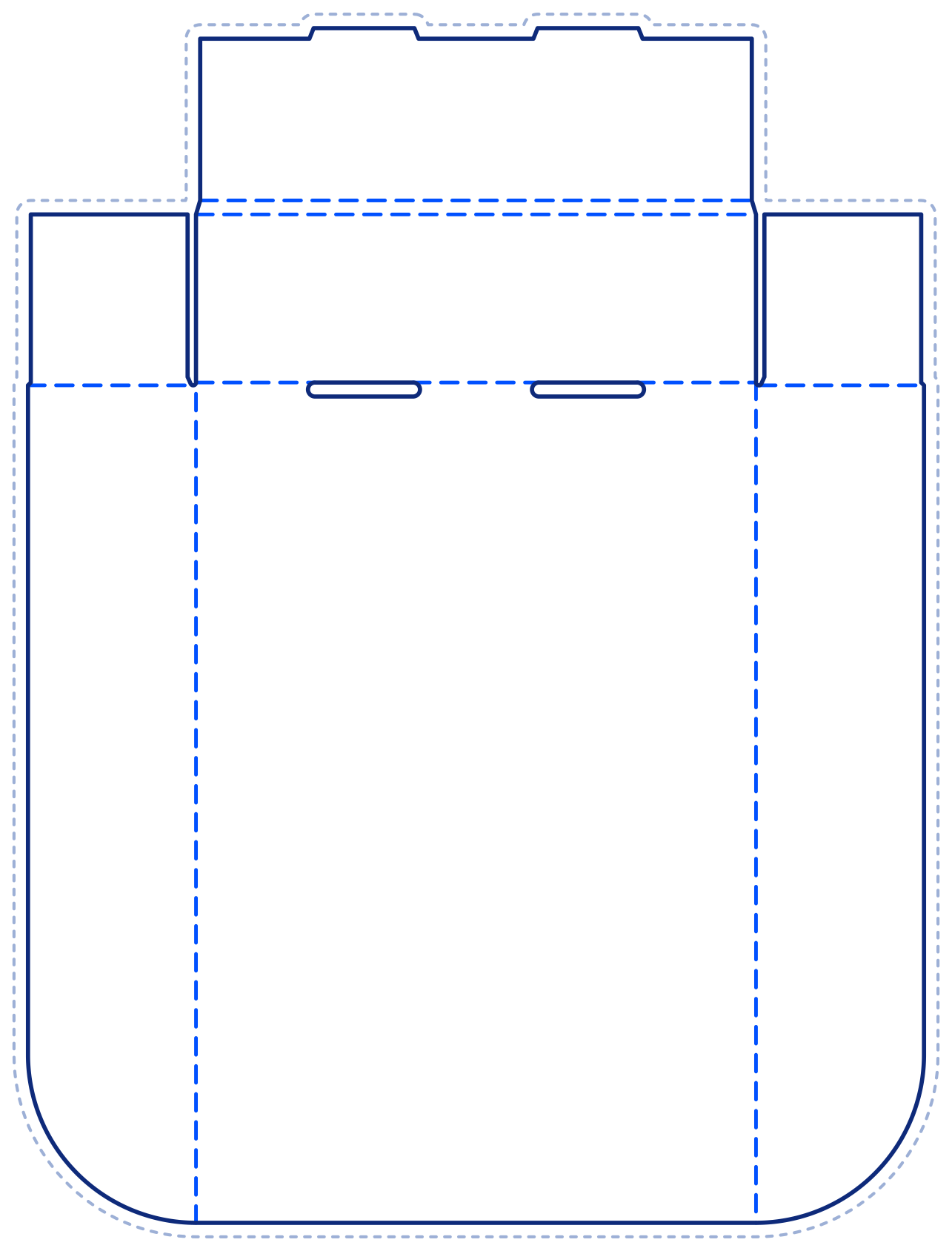 | Display tray | 300 × 200 × 60 mm | Create dieline |
Each box shape has its own minimum and maximum size. The tool tells you straight away when a size cannot be drawn.
See all box shapes03
Reading the lines in the file
A dieline file has three kinds of line, each on its own layer. The figure below draws each kind in its own colour and line style so they are easy to tell apart.
Cut line CUT
Where the blade cuts the piece out of the sheet
Crease line CREASE
Where the board is scored so it folds
Bleed BLEED
Backgrounds and images that touch an edge must extend to this line so no white edge shows after cutting
Bleed differs from shape to shape. Always follow the bleed line in the file for the shape you chose.
04
How to create a dieline
Four steps, and you can check the flat layout at your size before downloading.
- 1
Choose a box shape
Pick the shape that suits your product, such as a reverse tuck end box or a hinged lid tray box.
- 2
Enter length × width × height (mm)
Enter millimetres measured along the fold lines, in the order length × width × height. The tool tells you straight away when a size is outside that shape's range.
L 100 × W 50 × H 150 mm - 3
Check the flat layout
See the dieline at your size against a millimetre ruler before you download the file.
- 4
Download the PDF
A real-size 1:1 vector PDF with cut, crease and bleed lines on separate layers.
dieline.pdf1:1 · mm · 3 layers
05
Placing artwork so it lines up
The rules that keep your print aligned with the box after cutting and folding.
- Do
Extend backgrounds and edge images out to the bleed line
AvoidStopping the background at the cut line — a white edge shows after cutting
- Do
Keep text and logos clear of cut and crease lines
AvoidPutting important text across a crease
- Do
Use the file at real size 1:1 — never scale the dieline
AvoidScaling the dieline to fit a page
- Do
Place artwork on a new layer and leave the dieline layers untouched
AvoidMoving or editing the cut and crease lines yourself
06
From dieline to order
Once your artwork sits on the dieline, the next step is ordering.
Digiboxs does not offer a design service The buyer prepares the artwork. This dieline helps place it in the right spot from the start.
- Step 1Place artworkBuyer
- Step 2Add to cart and attach artworkBuyerArtwork can also be attached later from the order page
- Step 3Confirm the order and payBuyerTransfer to the bank account, then attach the proof of transfer
- Step 4File checkDigiboxsWithin 1 business day
- Step 5ProductionDigiboxs7–10 business daysAfter the artwork is approved and payment is made
07
Frequently asked questions
Which programs open the dieline file?
The file is a vector PDF. It opens in Adobe Illustrator and any design program that imports PDF, with cut, crease and bleed lines on separate layers.
What size is the file?
Real size 1:1, in millimetres, at the length × width × height you entered.
Is the size the inside or the outside of the box?
The size you enter is measured along the fold lines. The inside of the box is slightly smaller and the outside slightly larger, depending on board thickness. Please allow room for your product to fit.
How far should the artwork go?
Extend backgrounds and edge images to the bleed line. Keep important text clear of cut and crease lines.
What sizes can I enter?
Each box shape has its own minimum and maximum size. The range for each side is shown under its field, and the tool tells you straight away when a size cannot be drawn.
Can the shop design the box artwork?
Digiboxs does not offer a design service. The buyer prepares the artwork and attaches it when ordering, and the shop checks the file within 1 business day.
How long does production take?
Production takes 7–10 business days after the artwork is approved and payment is made.